Create your password from your invite, then log in any time.
Find the email from My Salon Campus ("Welcome to …"). Not there? Check spam or promotions.
Tap Create My Password. This link works once.
Type it, save it. Your sign-in email is shown in the invite.
Next time, log in at mysaloncampus.com (below).
Tap mysaloncampus.com. It opens the sign-in page. Or open your Campus app.
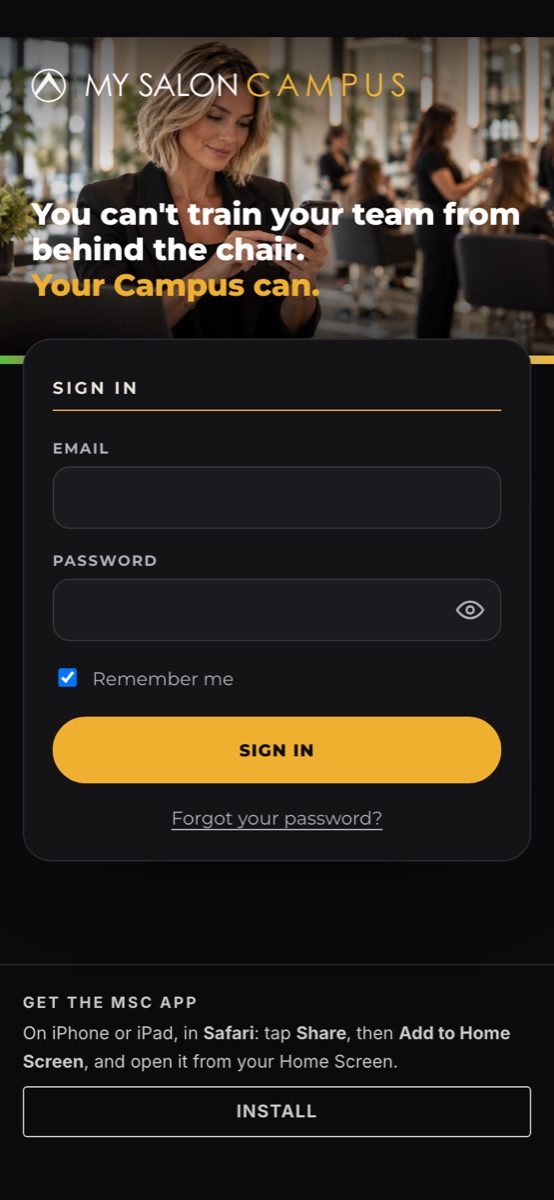
Enter your Email and Password. Tick Remember me on your own phone, then tap Sign in.
To keep your salon safe, we email you a 6-digit code. Enter it to finish. It works for 10 minutes.
You know your password and want a new one.
On your Campus home, tap the yellow edit profile button. It opens My Account.

Find Account Security and tap Edit.
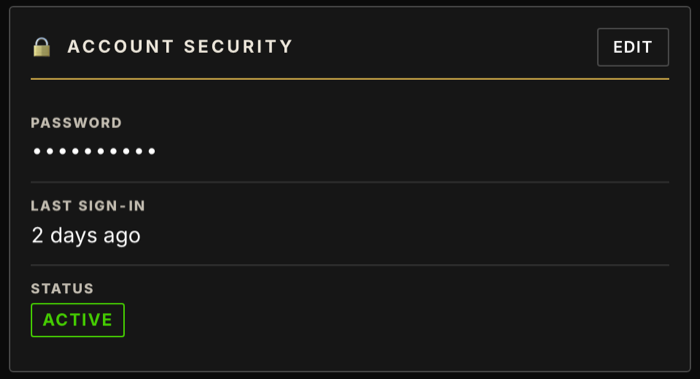
Your Current password, your New password (at least 8 characters), then Confirm new password.
Tap Change password.
On the sign-in page tap Forgot your password?, enter your email, and follow the link we send.
It works once. Use Forgot your password? with your sign-in email instead.
Use the email from your invite, then try Forgot your password?
Ask your Campus Admin, or message MSC.
Check spam, wait a minute, then ask for a new code on the code screen.
