Messages, announcements, reviews and reminders on your lock screen, even when Campus is closed.
Choose your device
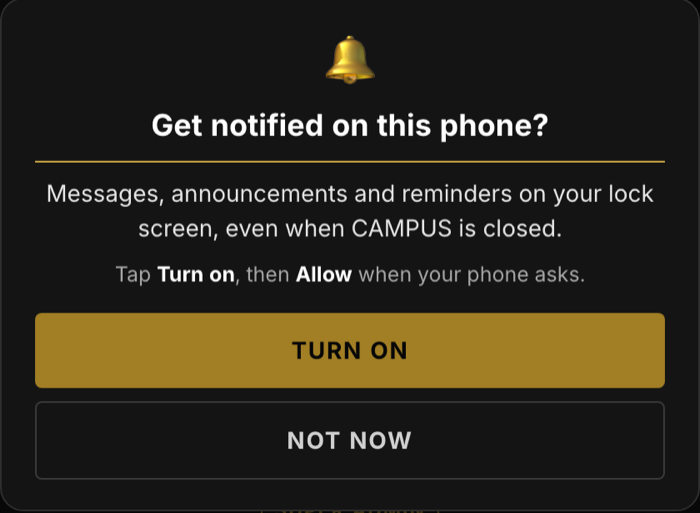
After you sign in on your phone, tap Turn on, then Allow.
 Campus
Open Campus from your Home Screen icon and sign in.
In the pop-up, tap Turn on.
Tap Allow when your iPhone asks. Needs iOS 16.4 or newer.
CampusOpen Campus from its icon (best) or in Chrome, and sign in.
In the pop-up, tap Turn on.
Tap Allow when your phone asks.
Log in, then on your Campus home tap edit profile.

Tick Phone notifications on this device.
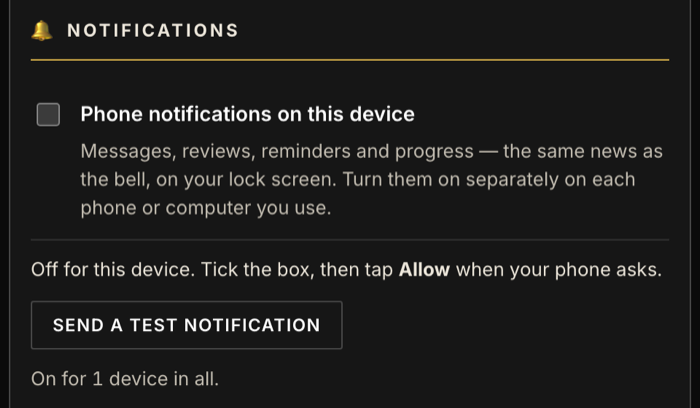
Click Allow when your browser asks, then Send a test notification.
CampusOpen Campus from your Home Screen icon. iPhone: it must be the Home Screen app, not Safari.
On your Campus home, tap the yellow edit profile button.
Scroll to Notifications and tick Phone notifications on this device.
Your phone asks to allow notifications. Tap Allow.
Tap Send a test notification. It should land on your lock screen.
CampusOpen Campus from its icon on your Home Screen or app list.
On your Campus home, tap the yellow edit profile button.
Scroll to Notifications and tick Phone notifications on this device.
Your phone asks to allow notifications. Tap Allow.
Tap Send a test notification. It should land on your lock screen.
No Allow question, or the box won't stay ticked? You tapped Don't Allow before. See Turn it back on.
| Not now | Nothing reaches your lock screen. You still see the bell and the dots on Chat inside Campus. It asks again in 7 days. |
| Ignore the pop-up | It comes back each time you open Campus until you choose. |
| Don't Allow | Your phone blocks Campus and the pop-up can't ask again. See below. |
| From Safari | The pop-up tells you to add Campus to your Home Screen first. |
edit profile › Notifications, tick Phone notifications on this device, then Allow.
iPhone Settings › Notifications › Campus › turn on Allow Notifications. Then in Campus, edit profile › Notifications, tick the box.
Press and hold the Campus icon › App info › Notifications › on (in Chrome: icon beside the address › Permissions › Notifications). Then in Campus, edit profile › Notifications, tick the box.
Click the icon beside the web address › Notifications › Allow. Then edit profile › Notifications, tick the box.
edit profile › Notifications, untick the box. Only that device turns off.
